Export to Box
Alongside MediaStore, MediaBench can export your assets to external storage like Box. You connect Box once from your profile, then export assets or whole folders to it.
Connect Box
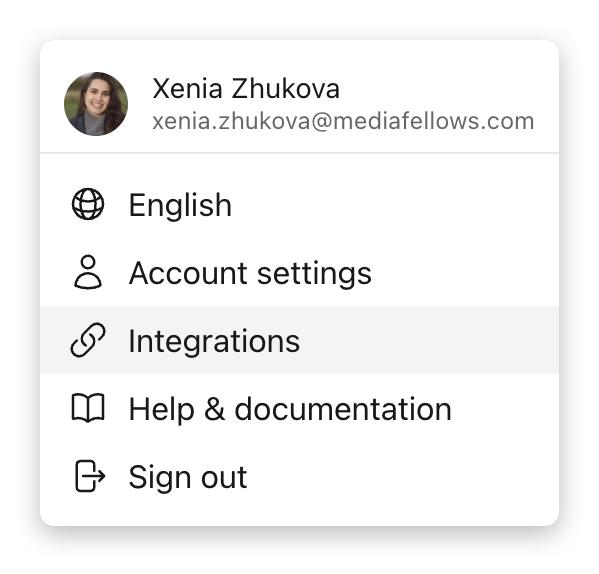
- Open the profile menu and select Integrations
- In the Integrations dialog ("Connect MediaBench with the tools your team uses to store, create, and review content."), find the Box card ("Your content securely extended to Box.")
- Select Connect and authorize MediaBench in the popup
- When it finishes, the card shows Connected with your account
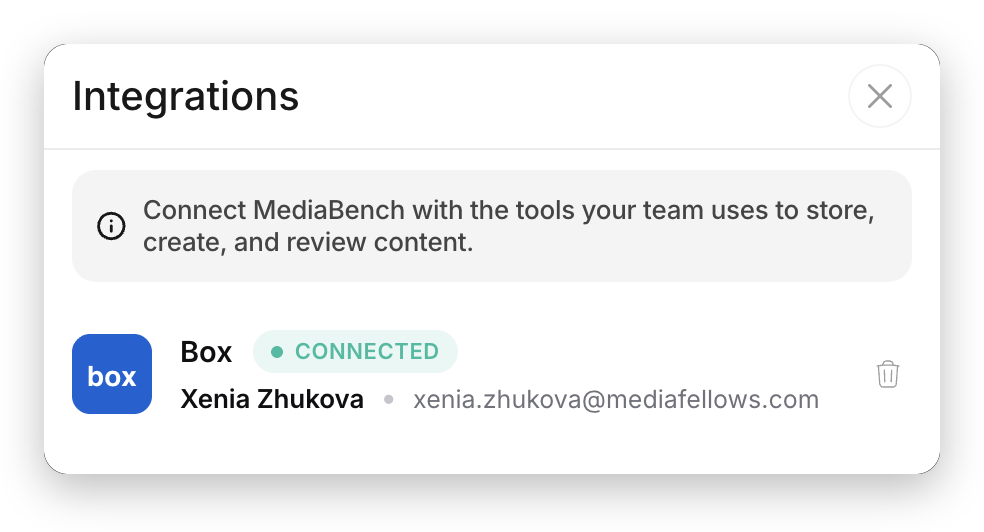
Integrations are connected per user, so each team member connects their own Box account.
Export an asset to Box
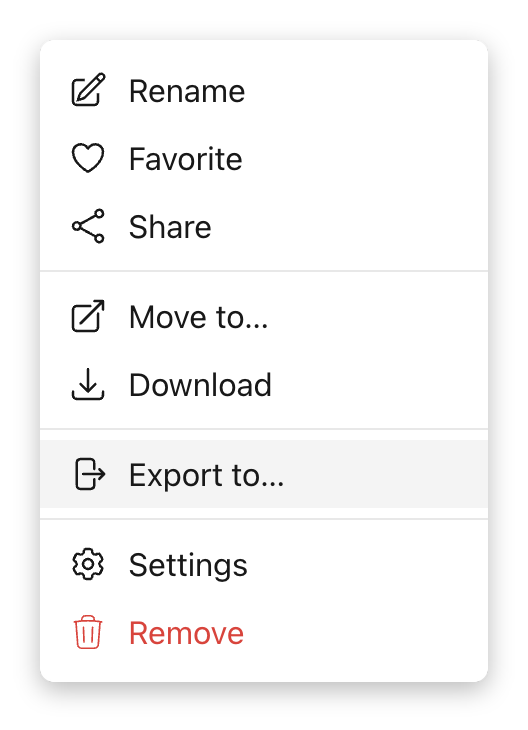
- Open the three-dot menu on the asset (or select several assets) and choose Export to…
- Pick Box as the provider
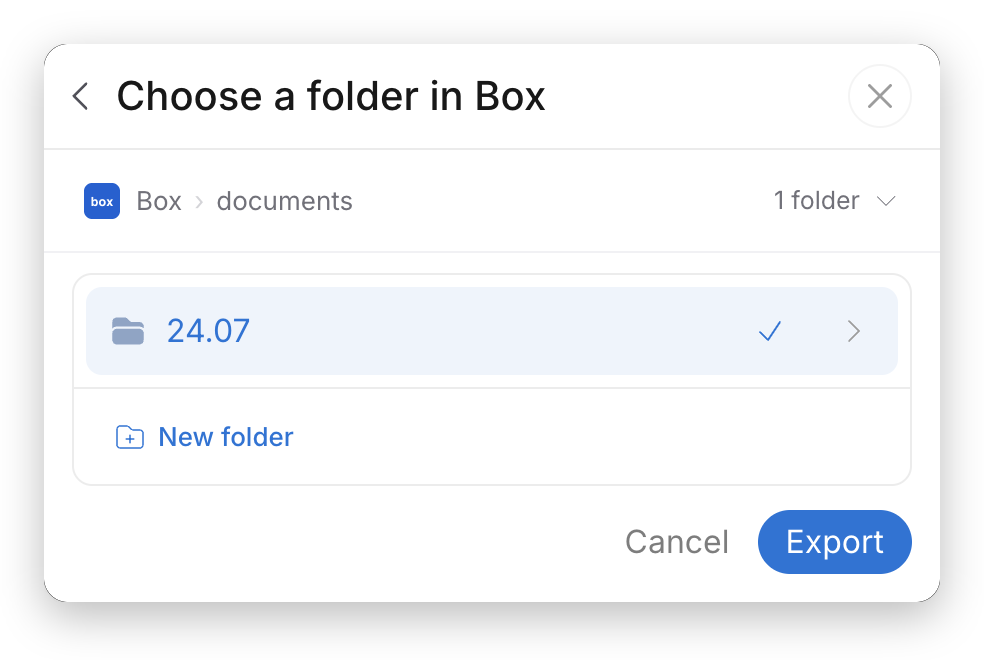
- In Choose a folder in Box, browse to a destination using the breadcrumb, or create a new folder
- Select Export
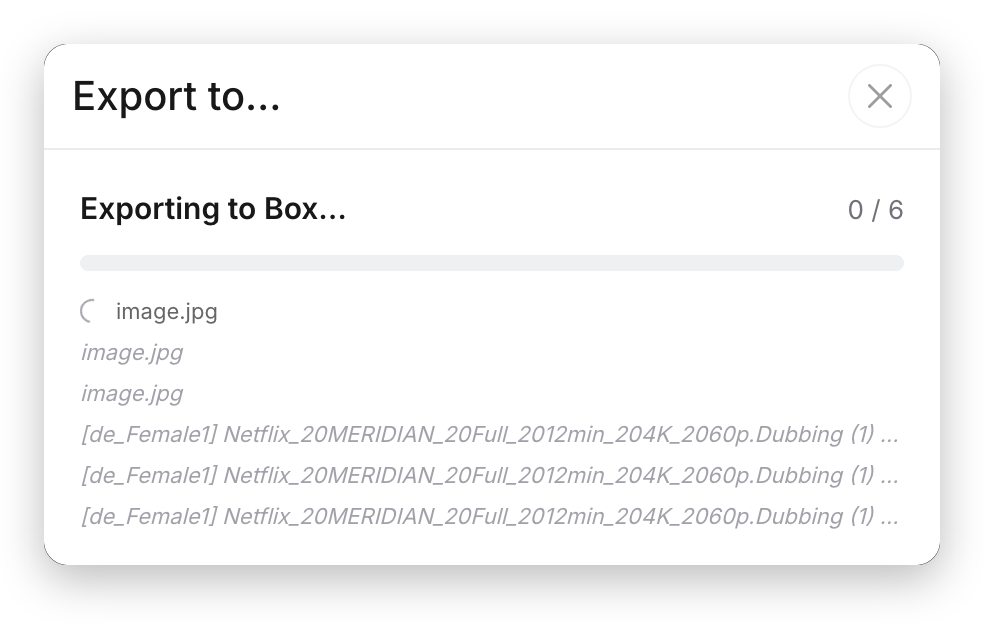
A progress dialog shows Exporting to Box…, then items exported with Saved to the destination path. If every file fails, the dialog shows Nothing was exported with a Retry button. If only some files fail, it shows N of M exported with the succeeded and failed counts and a list of the files that failed, but no Retry button — re-run the export to try those items again.
Disconnect Box
Open Integrations, select Remove on the Box card, and confirm. MediaBench notes: "Box will be disconnected from MediaBench. You can reconnect at any time."