View and Add Comment Topics
Comments are how you and your collaborators give feedback on an asset, anchored to the exact moment or page you are talking about. Topics let you run more than one conversation on the same asset, so internal notes and client feedback stay separate. Together they are the heart of review and approval in MediaBench.
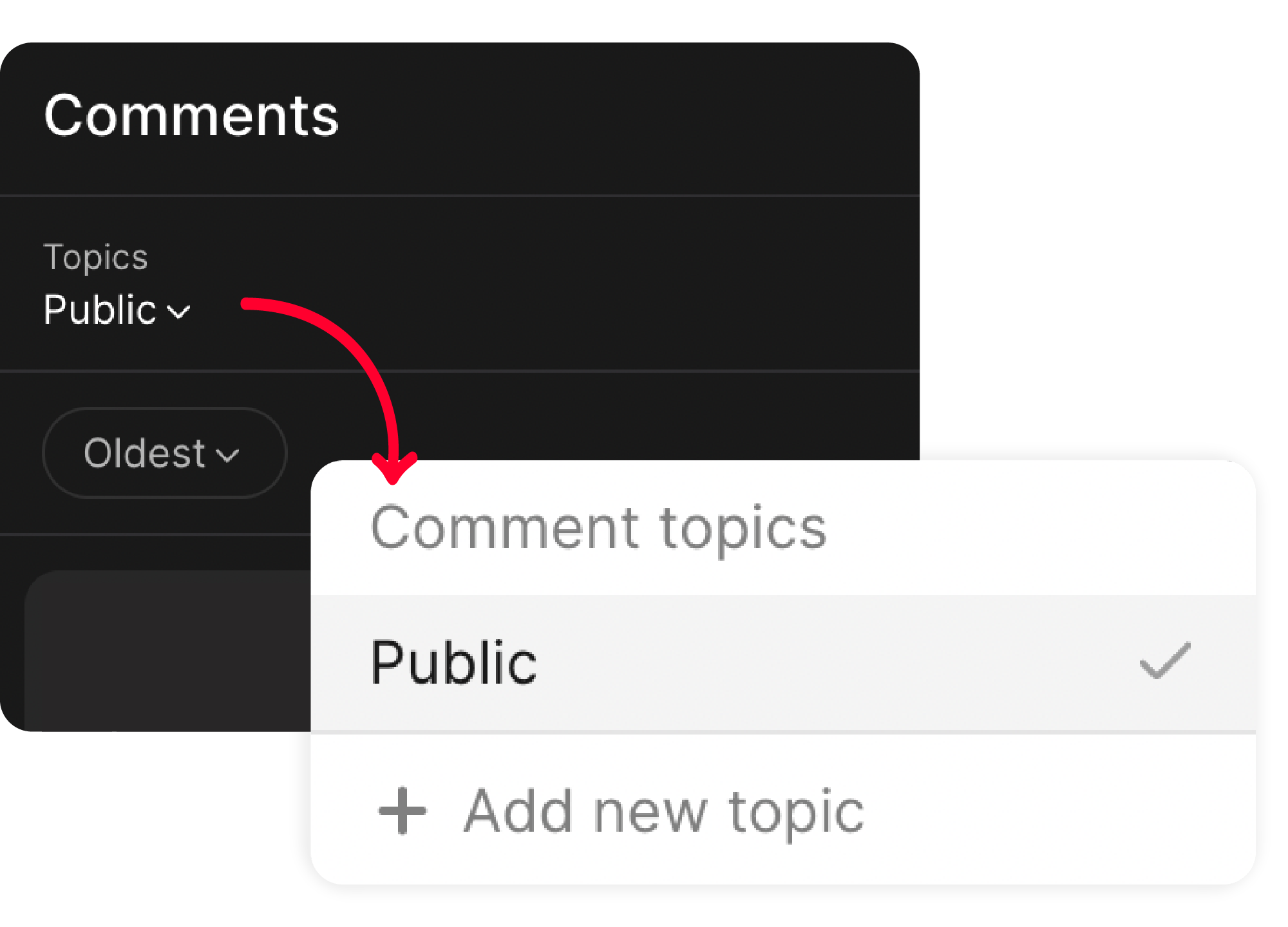
The comments panel
The comments panel sits beside every asset and is open by default. Use the chevron on its edge to collapse or expand it. The controls above the thread let you sort, filter, search, and download the conversation.
Leave a comment
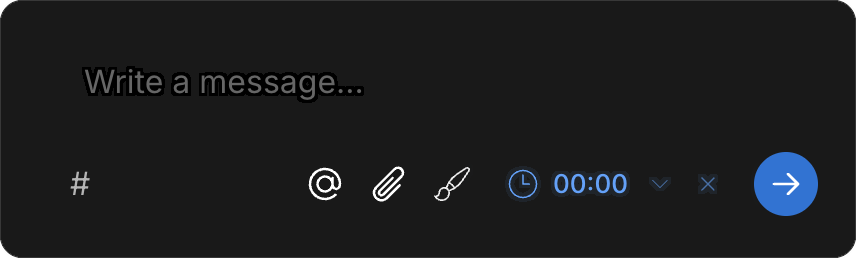
- Type your feedback in the Write a message... box
- Before sending, enrich it with the buttons below the box:
- # adds a label (Praise, Suggestion, Issue, Todo, Question, and more) so feedback is easy to triage
- @ mentions a collaborator and notifies them
- the attach button adds a reference image or file
- the draw button lets you Draw on frame and mark up the exact spot
- Click the blue arrow to send
By default a comment is pinned to the current moment in the video. To pin it to a span instead, use the clock Attach to... menu. See Add time ranges to comments.
Reply and edit
Reply under any comment to keep the discussion threaded beneath the point it relates to. You can edit a comment for up to 60 minutes after sending it.
Organize with topics
Topics are separate discussion threads on the same asset, so different audiences do not get tangled together.
- Open Topics at the top of the panel to switch between threads
- Select Add new topic to start another one
- Choose its visibility:
- Public so everyone with access to the asset can see it
- Private so only you and the collaborators you add can see it
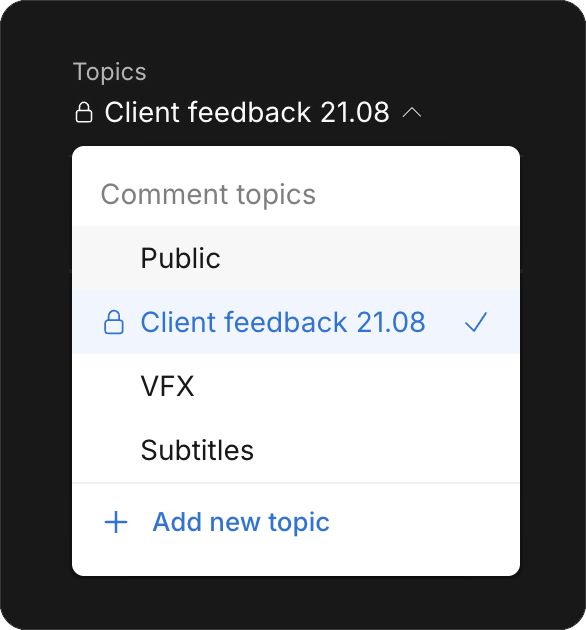
The default Public topic cannot be renamed or archived. Create a new topic whenever you need a separate or private thread.
Find and export feedback
- Search the thread with the search box. Type @ to search by author, or # to search by label.
- Sort by Oldest, Newest, or Timecode, or type a label like #Issue in the search box to focus on the feedback that matters.
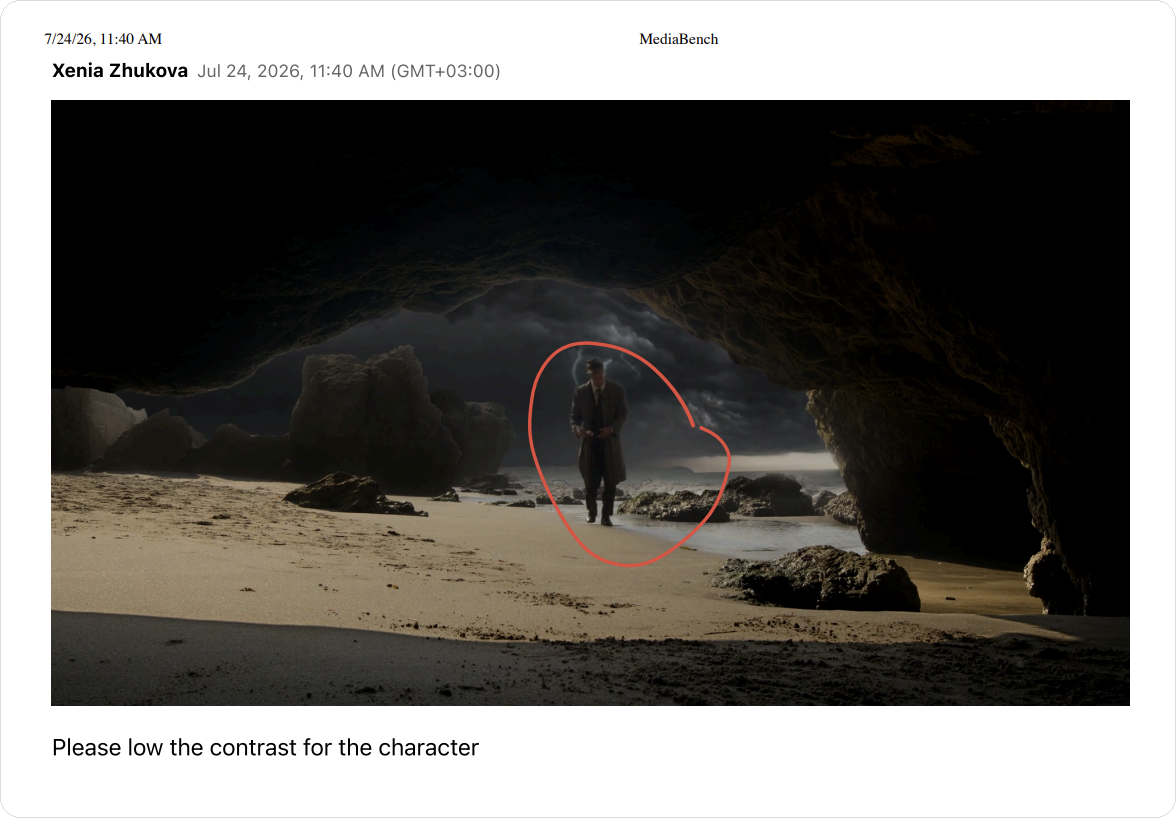
- Download comments as CSV, TXT, XLSX, or PDF. The PDF includes any drawings, so it doubles as a review report.
The example below is a generated PDF: the comment appears with the reference drawing marked directly on the frame.
Good to know
- Comments can be anchored to a moment or page, so selecting one jumps the player there, but anchoring is optional.