Set Up Asset Protection
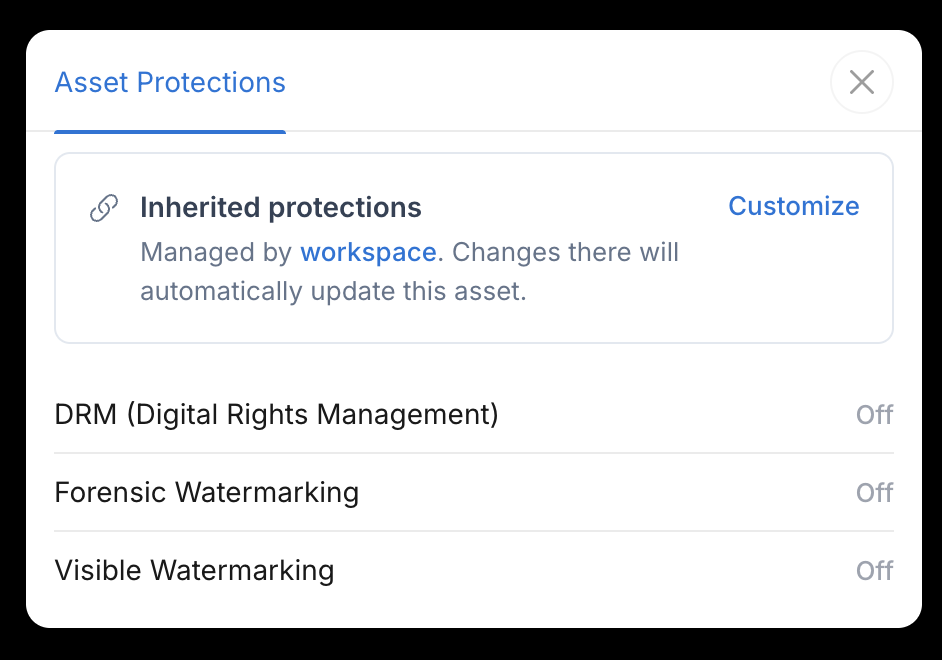
MediaBench protects video assets in three ways. Protections apply only to video assets. In the Asset Protections settings tab, unsupported asset types don't expose protection controls at all, and audio assets show a Video only chip whose tooltip reads Protections only apply to video assets. Other asset types are unaffected. When you configure protections on a share link for a non-video asset, you'll see the notice Protections are only supported on video assets.
- DRM (Digital Rights Management) - "Encrypts and controls playback through licensed access"
- Forensic Watermarking - "Embeds invisible session-level identifiers for traceability"
- Visible Watermarking - "Add visible watermarks to your video and image assets" (see Design a Visible Watermark)
Where you set protections
You can set protections at three levels, and each more specific level can override the one above it.
- Workspace defaults - open Settings and select Asset protections. These apply across the workspace unless something overrides them. Only the workspace owner can change them.
- A folder or asset - open Settings on the folder or asset and select the Asset Protections tab.
- A share link - set protections that apply only to that link. See Customize and Manage Share Links.
How inheritance works
Protections pass down from each level to the next: the workspace sets the starting point, folders inherit it, subfolders inherit from their folder, and assets inherit from the folder they're in. Any item can override what it inherits by setting its own protections, which then pass down to everything inside it.
Each level can override what it inherits.
Share links are the exception: they don't inherit anything. Each link has its own DRM, forensic watermarking, and visible watermarking, separate from the asset's settings. See Customize and Manage Share Links.
Who can do what
Your role decides which protections you can set. See Access Roles and Permissions for the full breakdown.
- Workspace owner - sets the workspace-wide default protections. This is the only role that can change the defaults.
- Manager - manages protections on individual folders and assets, and creates and manages share links, including share-level protections.
- Contributor and Viewer - cannot set or manage protections, or create share links.