Access Roles
MediaBench has three roles: Manager, Contributor, and Viewer. A role decides what a person can do on whatever you give them access to, whether that's the whole workspace, a single folder, or one asset. Pick the role that matches how involved someone needs to be: running projects, working hands-on with content, or just reviewing.
The three roles
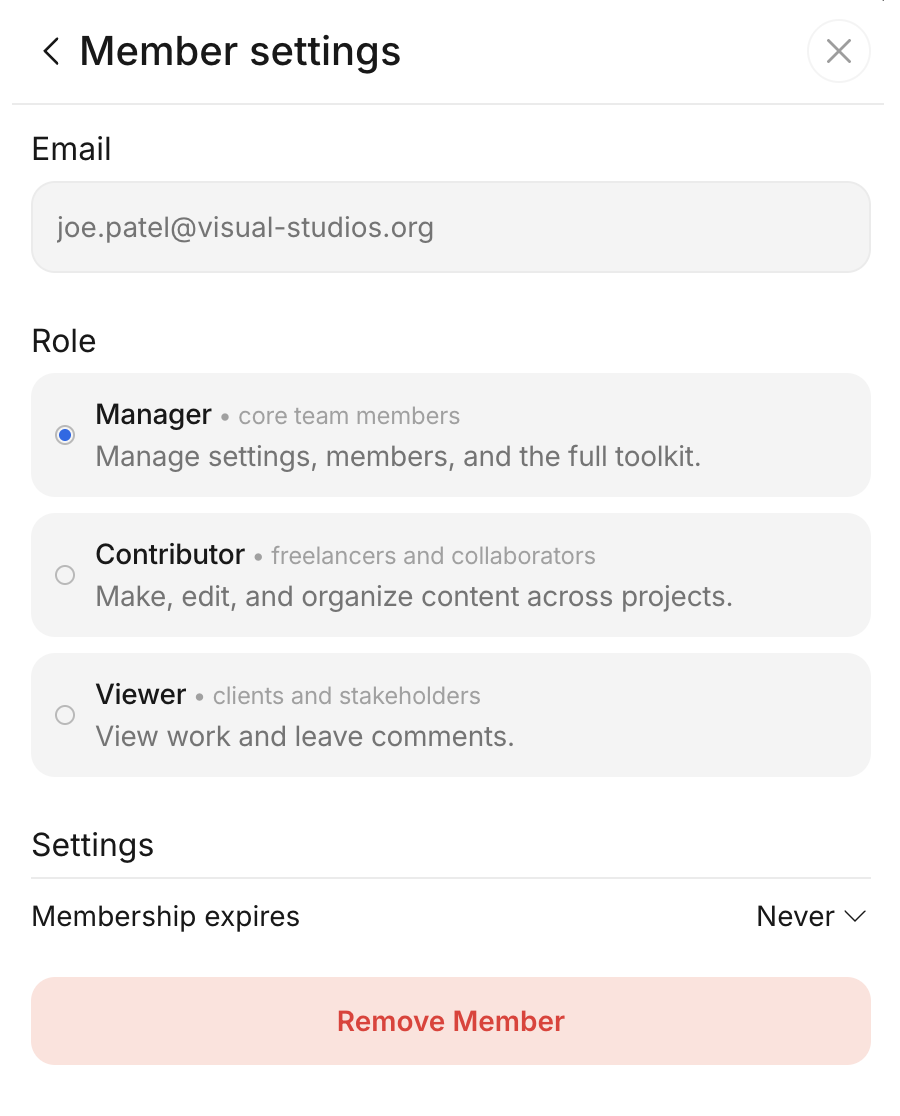
Manager
Best for your core team, the people who run projects, invite collaborators, and manage content day to day. Managers can do almost everything. The only actions reserved for the workspace owner are viewing billing and setting workspace-wide asset protections.
Contributor
Best for freelancers and hands-on collaborators. Contributors upload, edit, and organize content across projects, but they don't manage people, share links, protections, or workspace settings.
Viewer
A view-only role for browsing work and leaving feedback. Best for clients and stakeholders who review content and comment, but shouldn't edit, download, or share it.
What each role can do
The tables below match the app's permission rules. A check (✓) means the role can do it; a cross (✗) means it can't.
Viewing and feedback
Everyone with access can view content and take part in review.
| Capability | Manager | Contributor | Viewer |
|---|---|---|---|
| View assets, folders, and version history | ✓ | ✓ | ✓ |
| Compare versions | ✓ | ✓ | ✓ |
| View subtitles | ✓ | ✓ | ✓ |
| Comment, reply, and draw annotations | ✓ | ✓ | ✓ |
| Update asset status | ✓ | ✓ | ✓ |
| Open folder settings | ✓ | ✓ | ✓ |
| Edit folder notifications (uploads, ingest, frequency) | ✓ | ✓ | ✓ |
| Download comment attachments | ✓ | ✓ | ✗ |
| Create, edit, and archive comment topics | ✓ | ✓ | ✗ |
Content and organization
Managers and Contributors work hands-on with content. Viewers cannot.
| Capability | Manager | Contributor | Viewer |
|---|---|---|---|
| Create folders | ✓ | ✓ | ✗ |
| Upload assets | ✓ | ✓ | ✗ |
| Move, copy, rename, delete, and restore | ✓ | ✓ | ✗ |
| Move by drag and drop | ✓ | ✓ | ✗ |
| Attach files and tracks to assets | ✓ | ✓ | ✗ |
| Download assets | ✓ | ✓ | ✗ |
| Bulk copy, move, download, delete, and export | ✓ | ✓ | ✗ |
| Manage versions (add, set as main, detach) | ✓ | ✓ | ✗ |
| Attach audio tracks to videos | ✓ | ✓ | ✗ |
| Edit notes and custom metadata fields | ✓ | ✓ | ✗ |
| Upload and edit subtitles | ✓ | ✓ | ✗ |
| Export assets to external connections | ✓ | ✓ | ✗ |
| View AI chats | ✓ | ✓ | ✗ |
| View the invites and permissions list | ✓ | ✓ | ✗ |
| View share links | ✓ | ✓ | ✗ |
Manager-only actions
These actions are limited to Managers.
| Capability | Manager | Contributor | Viewer |
|---|---|---|---|
| Transcribe and translate subtitles | ✓ | ✗ | ✗ |
| View MediaStore; export subtitles and assets to it | ✓ | ✗ | ✗ |
| View Analytics | ✓ | ✗ | ✗ |
| Invite users and manage permissions | ✓ | ✗ | ✗ |
| Create and manage external share links | ✓ | ✗ | ✗ |
| Manage asset protections on assets and folders | ✓ | ✗ | ✗ |
| View asset protections | ✓ | ✗ | ✗ |
| Send AI chat messages and add a result as a version | ✓ | ✗ | ✗ |
| Open Settings (Access management, Usage) | ✓ | ✗ | ✗ |
Workspace owner
Two actions need the workspace owner on top of the Manager role. The workspace owner is a Manager who also owns the workspace, so these stay with a single person even when you have several Managers.
| Capability | Workspace owner | Other Managers |
|---|---|---|
| View Billing | ✓ | ✗ |
| Set workspace-wide (default) asset protections | ✓ | ✗ |
How roles combine across targets
A person can hold different roles on different targets, and the most permissive one applies. Someone who is a Viewer on the workspace but a Manager on one folder has full Manager rights inside that folder. When you invite someone, you choose both where to invite them and which role they get.