View Subtitles and Translations
Once subtitles are ready, you can watch them in sync with the video, switch between languages, and put two languages side by side to check a translation reads well. This is how you proof a localization before it goes out.

Watch and switch languages
- After transcription finishes, the original language appears in the Subtitles tab by default
- Subtitles are time-stamped, and each line is highlighted as it is spoken during playback
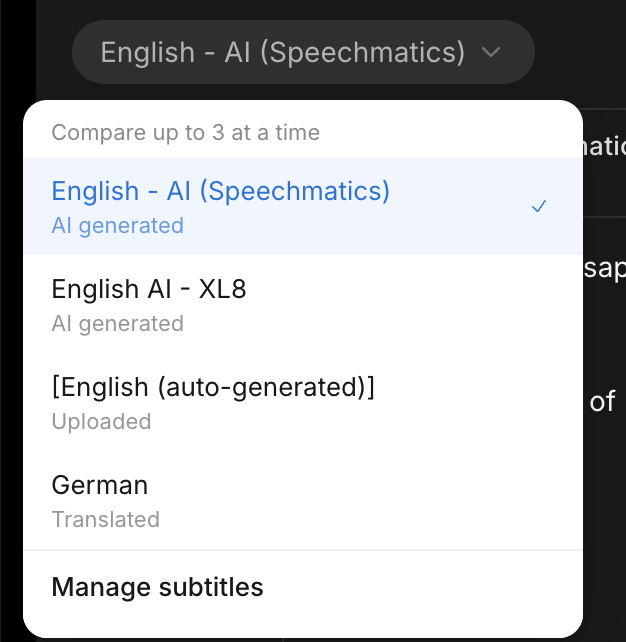
- Click the down arrow next to the subtitle language to switch between translations
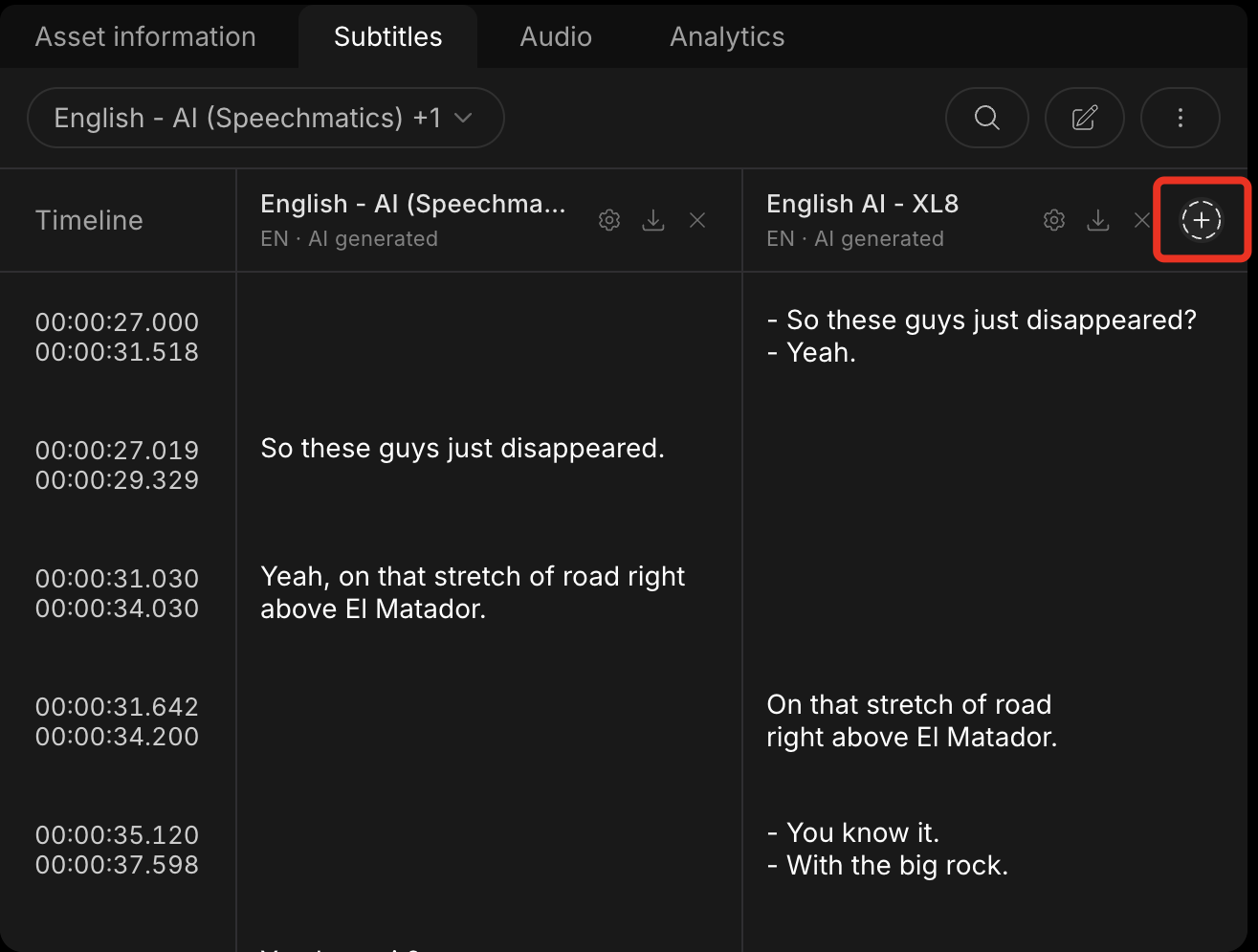
- Or open the same subtitle-language dropdown (or click the + button next to a language column) and add another language to view them side by side (up to three at once)
Which audio a set came from
Each subtitle set shows a small tag with the source audio track name (and an audio icon); hovering it reads Generated from [track] audio, so you can tell which audio track a set of subtitles was transcribed from. This tag appears when the video has multiple audio tracks and multiple subtitle sets.