Change Asset Status
Status tells everyone where an asset stands in your review and approval workflow, for example Needs review, In progress, or Approved. Setting it keeps the team aligned without anyone having to ask, and each change can notify the people who need to know.
Update the status
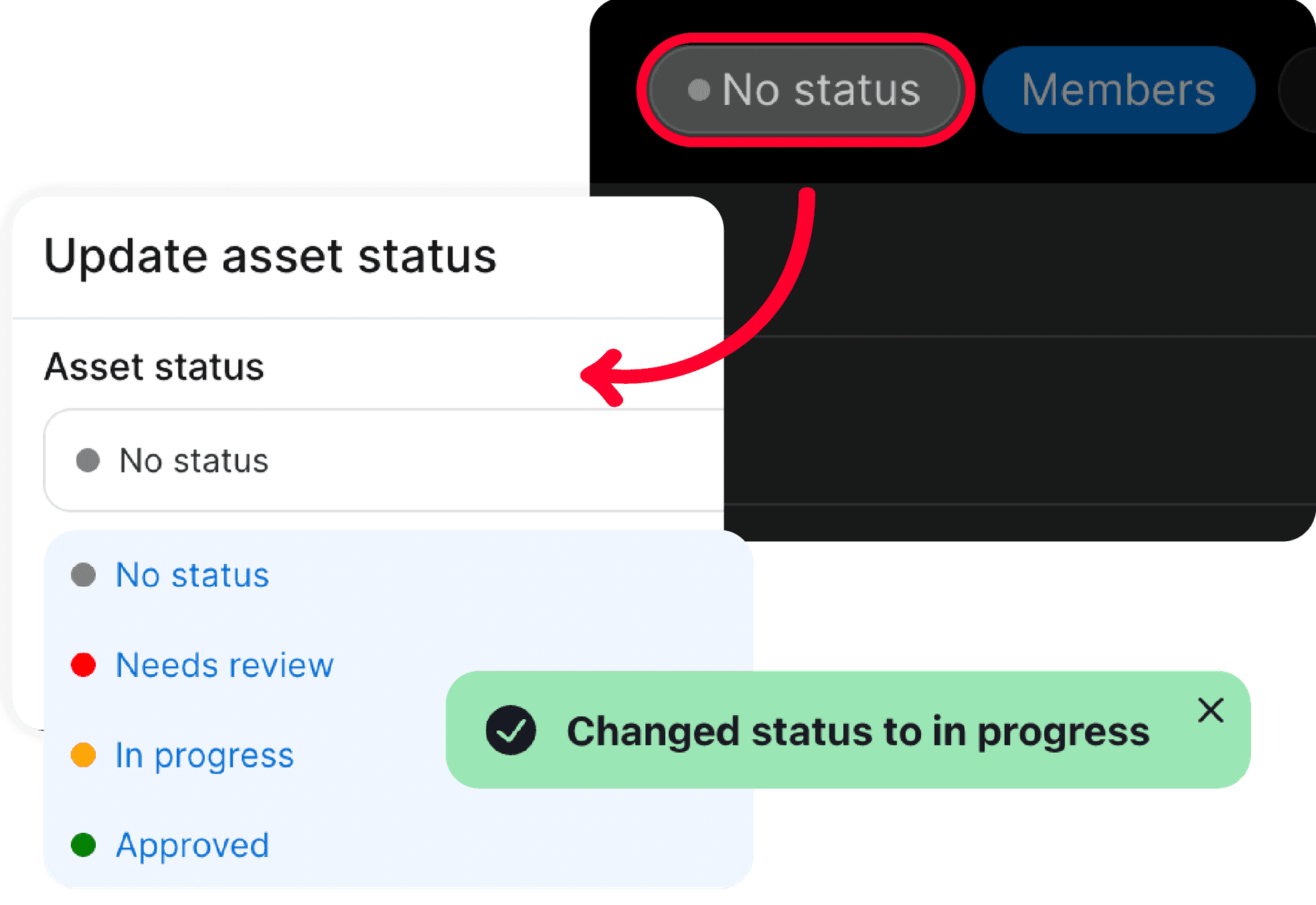
- Click the asset's current status in the menu bar (No status by default) to open the menu
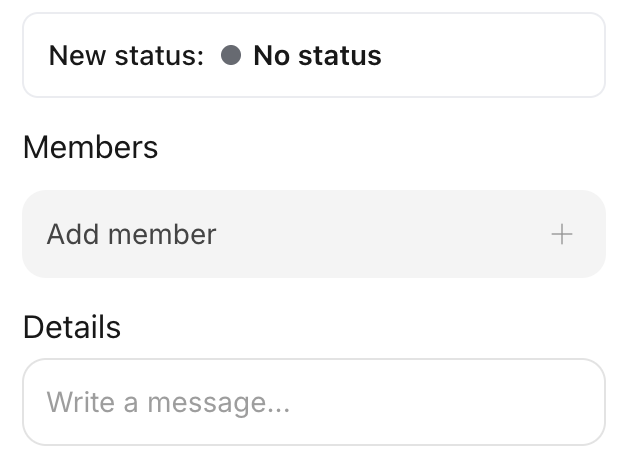
- To notify members or add details, turn on the notify toggle first (it sits above the status list)
- Choose the new status from the menu
- Add a comment to the notification email if you like, then select Update status & notify
Without the notify toggle turned on, picking a status applies it instantly and closes the menu, with no comment field or confirmation. The Update status & notify button only appears when the toggle is on.
You can also change an asset's status from the project page, without opening the asset. Open the asset's ... (action) menu from the list or card and choose the status item, which opens the same status dialog.
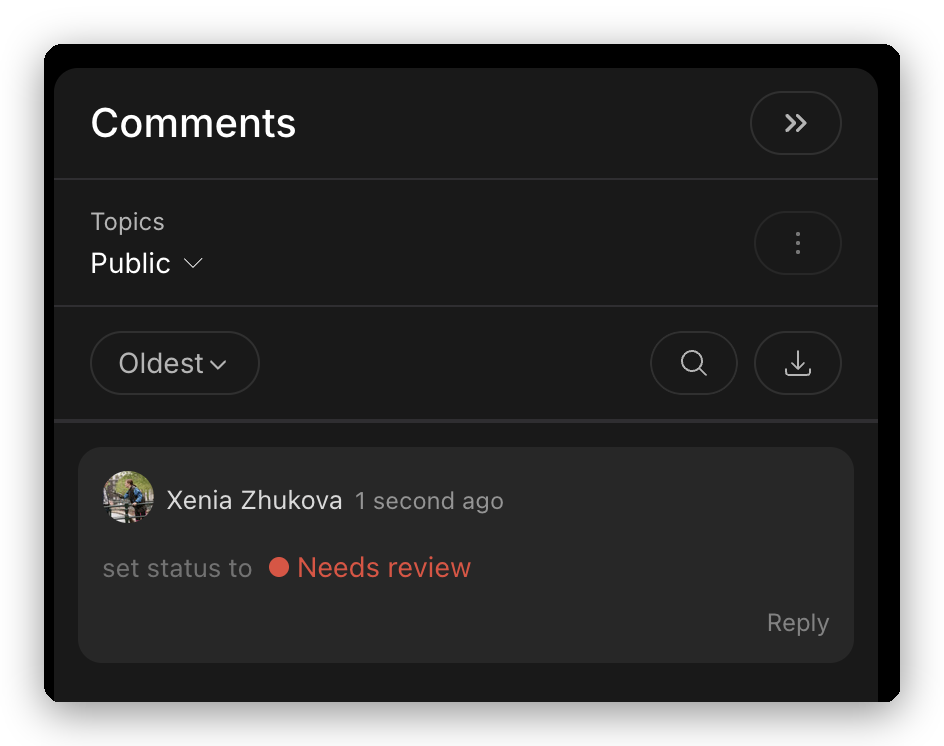
Everyone with access to an asset can update its status, including viewers. The change is recorded in the comment thread as a status update, so there is a clear trail of how the asset progressed.