Compare Versions
Compare versions puts two to six cuts of one video or still on one screen. The versions play and move together, so you can check a change from one cut to the next. Comments stay on the version you are reviewing.
Anyone who can open the asset can open comparison. Commenting, topics, and drawing follow your role on that asset. See Access and roles.
Comparison is available on desktop, for video and stills. On a phone, Compare versions is hidden, and a compare link opens the asset.
Open comparison
Compare versions appears in the asset menu bar when the asset has more than one version. It opens the version you are on beside the previous one. On the first version, it opens the next one.
- Open the asset
- Click Compare versions
The back arrow leaves comparison. The header reads Exit comparison mode.
Choose which versions are on screen
The control bar shows a count such as Versions 3/6. The menu lists every version in the stack. Its heading is On screen, and a check mark shows the versions you are viewing.
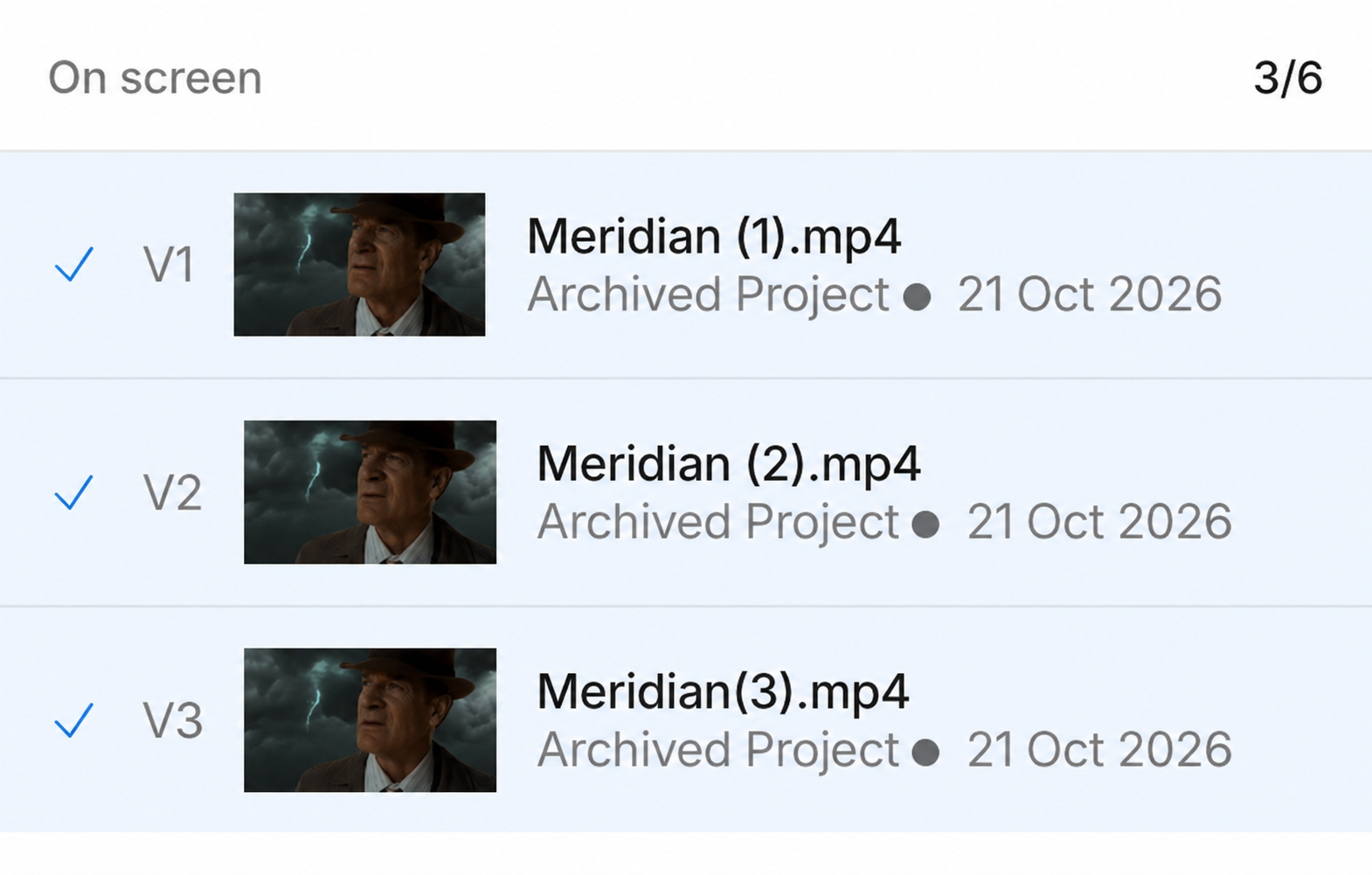
- Click the versions count on the control bar
- Click a version to add it
- Click a checked version to remove it
Comparison keeps at least two versions on screen, and six is the most.
Each pane shows the version number, the name, who uploaded it, and the date it was added. Click the X on a pane to remove that version.
Make a version active
Click a pane to make it the active version. The pane is highlighted. You hear that version. The other panes stay silent.

Volume and mute control that audio. When the active version has more than one audio track, open Settings, then Audio track, and choose the track.
The comments panel shows the active version. A new comment, a reply, and a topic are saved on it. Click another pane and that version's thread opens. See View and add comment topics.
Drawing works on the active version. The pen stays on that pane.
Change the order and layout
Drag a pane by the grip in its header, or use the swap buttons on its edges, to change the order.
Open Settings, then Layout. Your choice is stored in this browser.

- Grid is the default. Versions sit in up to three columns and two rows.
- Columns places every version on one line. This helps on a wide screen.
Play video together
One control bar runs every version. Play, pause, seek, scrub, frame step, playback speed, and Loop move every pane together. When a review range is set, Loop repeats that range. Click a comment that is attached to a time. Every pane seeks to that moment.
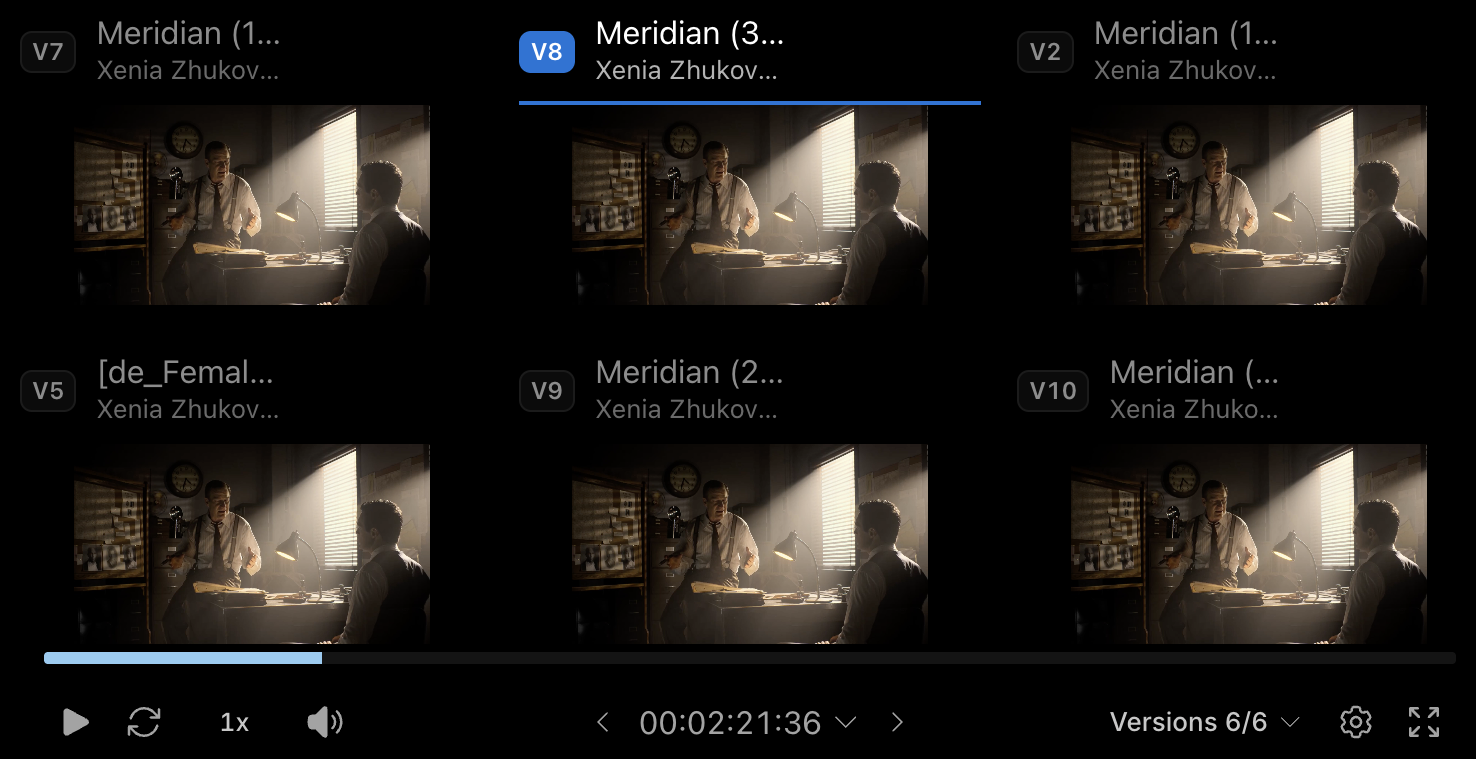
Quality is one setting for every pane, so the pictures match. Open Settings, then Quality, and pick a height. The list is the heights available on the versions on screen. Comparison opens at the best height at or under 720p. When every height is above that, it opens at the lowest one.
Guides draw on every video pane. Open Settings, then Guides. See Use Guides and Safe Zone.
Subtitles belong to one pane. Click Subtitles on that pane and choose a track, or Off.
Compare stills
Zoom, pan, Fit to frame, and the Hand tool apply to every pane, so the pictures stay aligned.
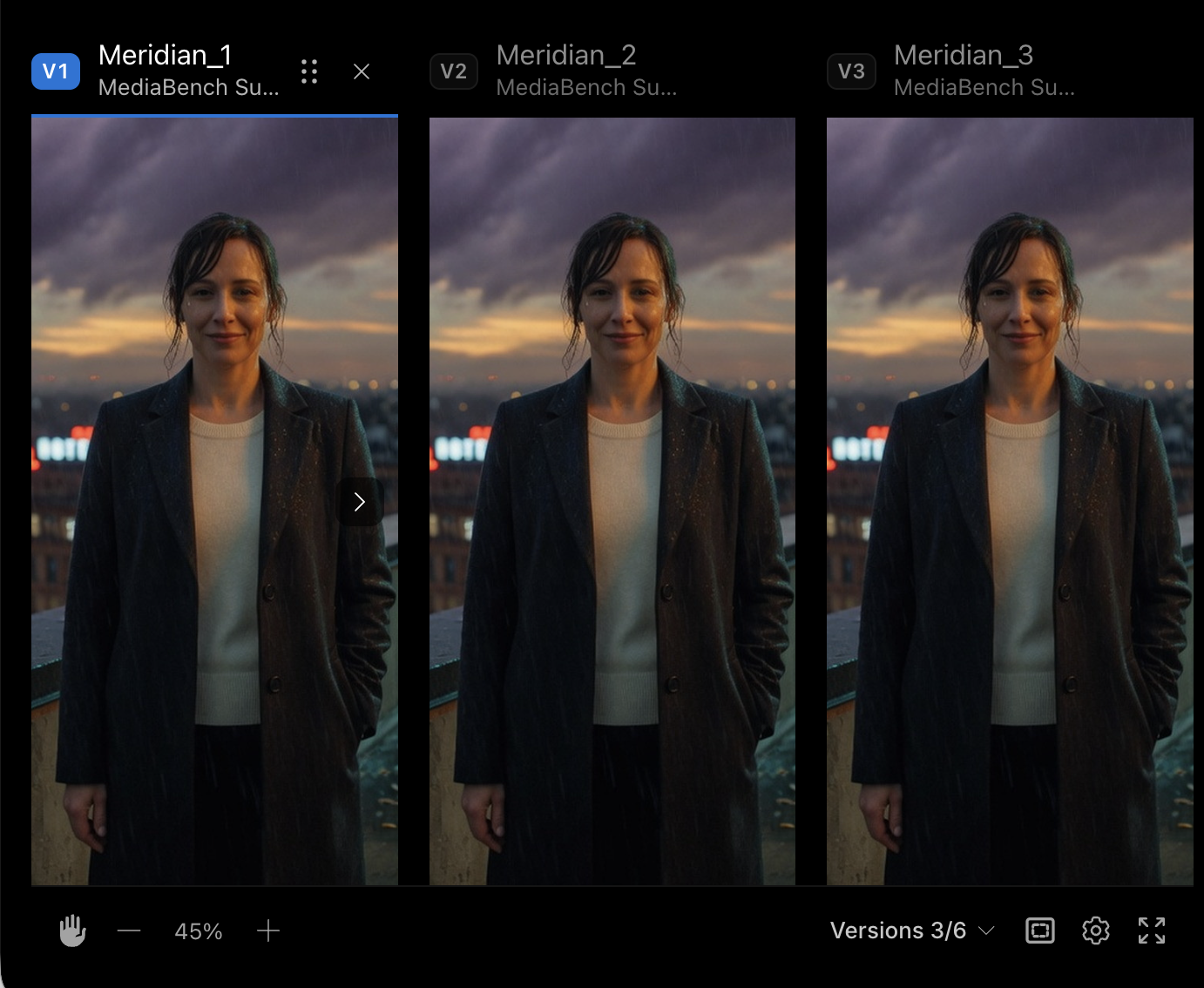
Safe zone is on the image control bar. It is available for resolutions that have a defined zone, and it applies to every pane. See Use Guides and Safe Zone.