Use Guides and Safe Zone
Guides and Safe zone are overlays you turn on while you review, so you can check that titles, faces, and key action still sit inside the crop.
Check a video with Guides
Use Guides when a video will be delivered in a different aspect ratio than the file you are watching. For example, a 2.39 theatrical crop on a 16:9 file, or a 9:16 social crop.
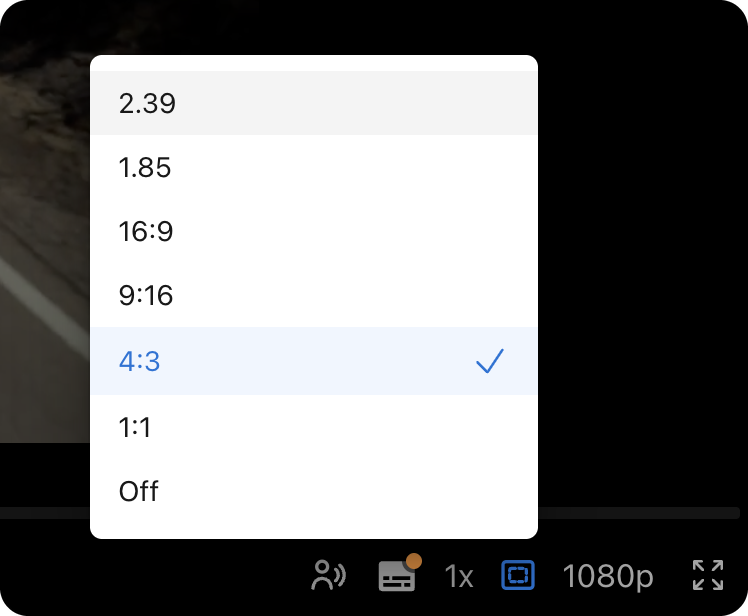
- Open a video
- In the player control bar, click Guides
- Choose a ratio: 2.39, 1.85, 16:9, 9:16, 4:3, or 1:1
- Choose Off to hide the overlay
On a phone, the same list lives under Settings, then Guides.
The overlay dims everything outside the chosen ratio, and the outer box is the crop. The inner box is the safe zone inside that crop, 10% in from the edges. Keep titles, logos, and key action inside it so they stay visible.
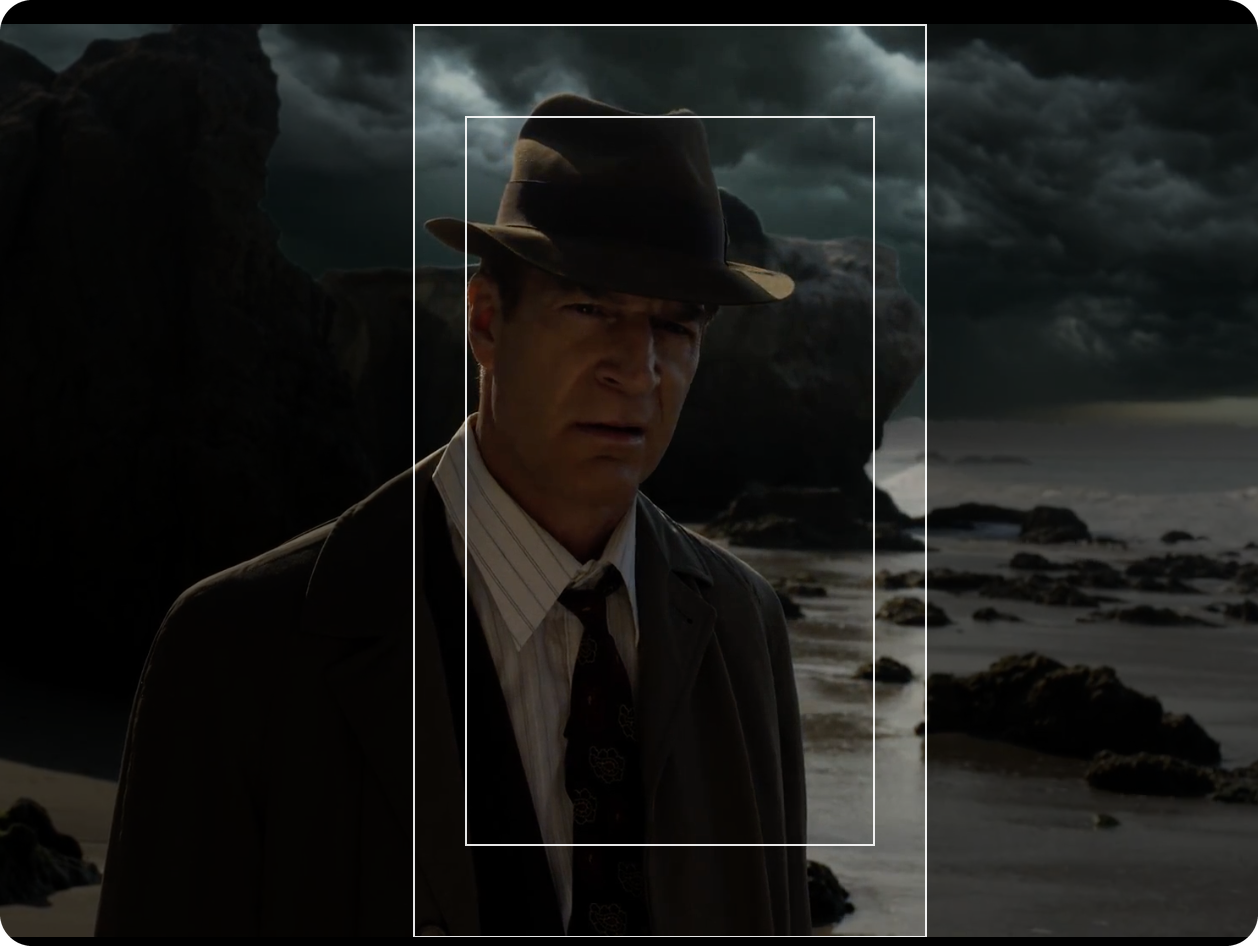
When you compare versions, open Settings, then Guides. The overlay draws on every video pane.
Guides only affect playback. They don't change the file. Your choice is stored in this browser, and it carries into comparison.
Check a still with Safe zone
Safe zone is for stills. Turn it on to dim the edges and show a box around the area that should stay visible. Keep important content inside the box.

- Open an image
- In the image control bar, click Safe zone to turn the overlay on or off
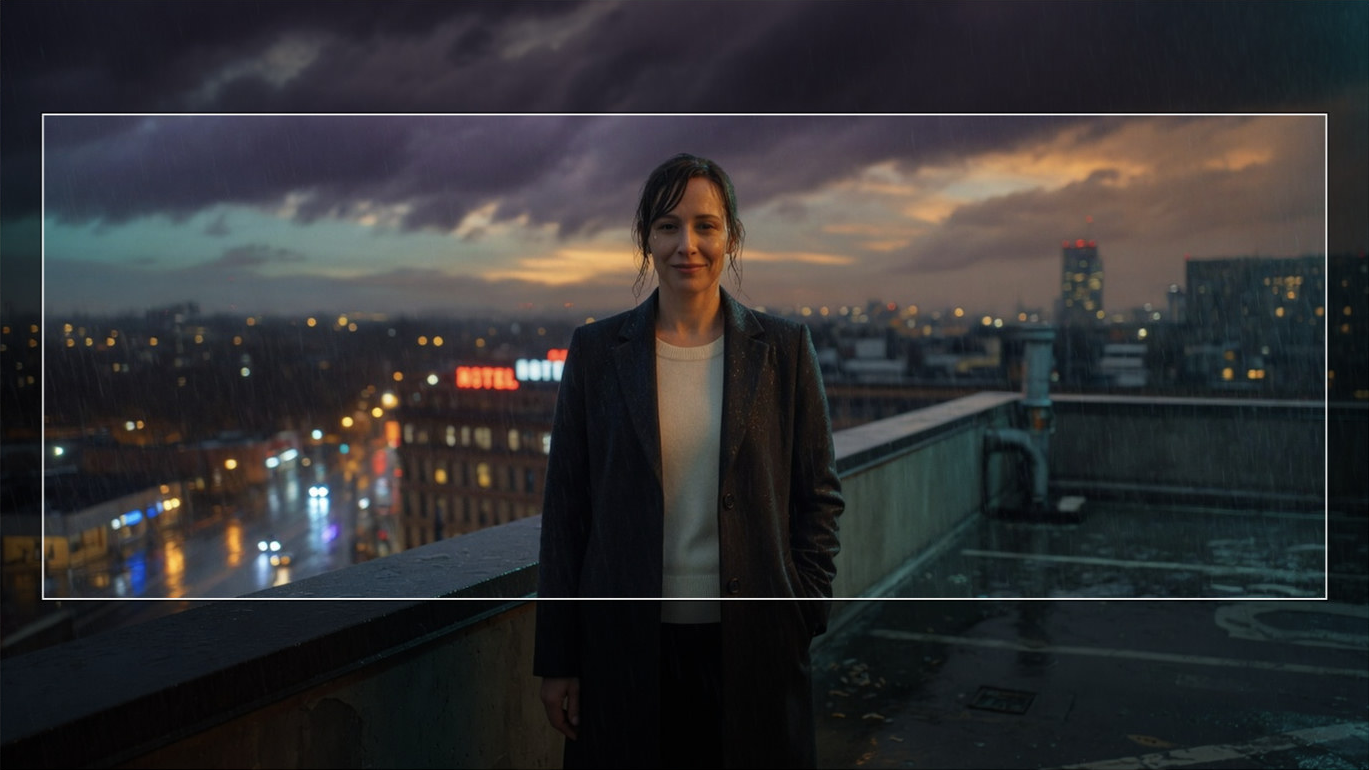
It works on 1920×1080, 2000×3000, and 3840×2160 images. On any other size the control is disabled.
When you compare stills, Safe zone applies to every pane. It stays available for resolutions that have a defined zone.