Navigate and Compare Asset Versions
Once an asset has more than one version, step through the stack from the version menu in the menu bar. To watch several versions on one screen, open Compare versions.
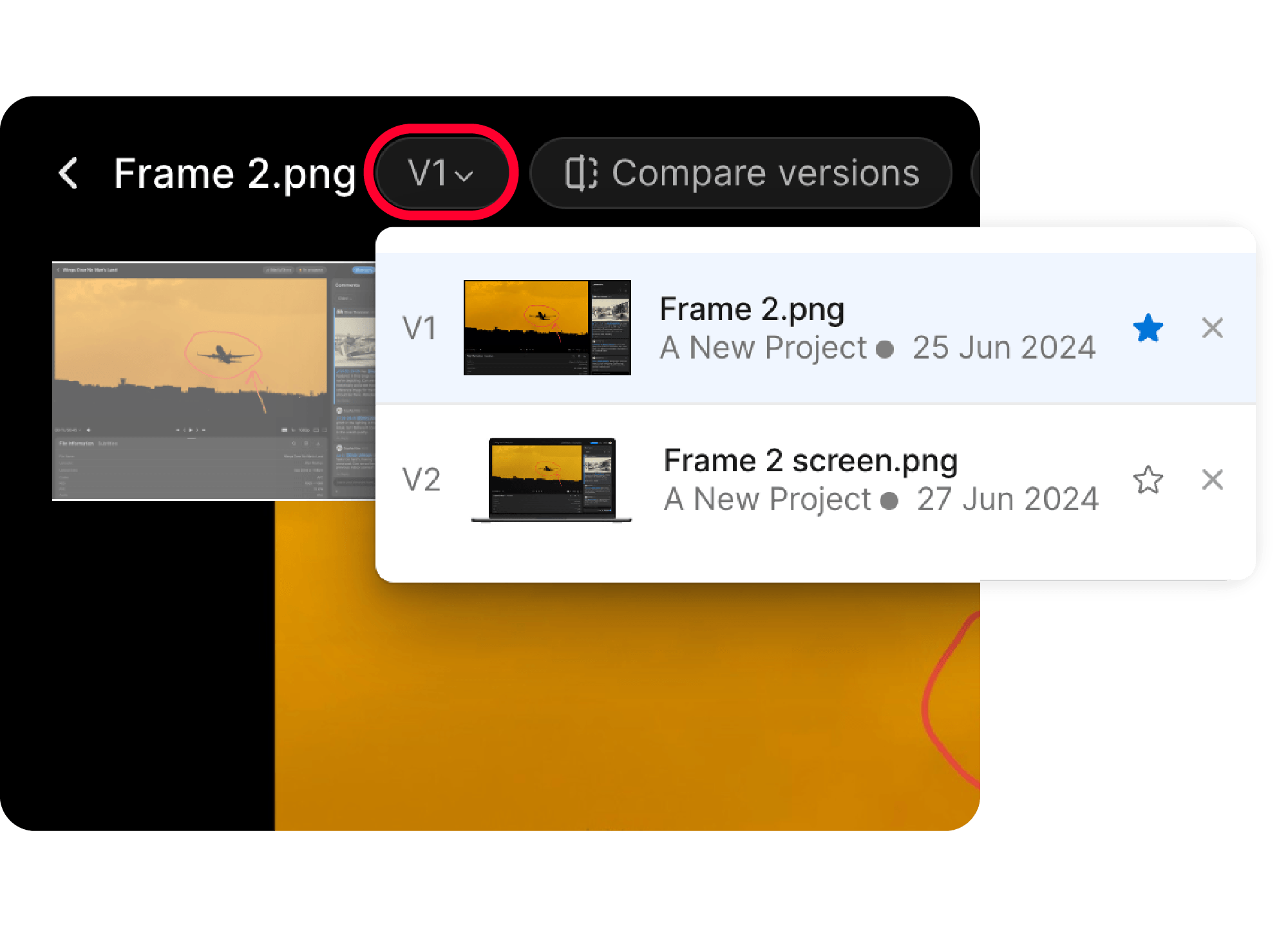
Browse versions
- Open the parent asset
- Click the version number (V1 by default) in the menu bar to preview and move between versions