Recents
Recents brings together the assets you've opened across folders in the current workspace. Use it to return to a review without remembering the filename or where it's stored. Your most recently opened assets appear first.
Return to a recent asset
Assets appear automatically after their asset page loads successfully.
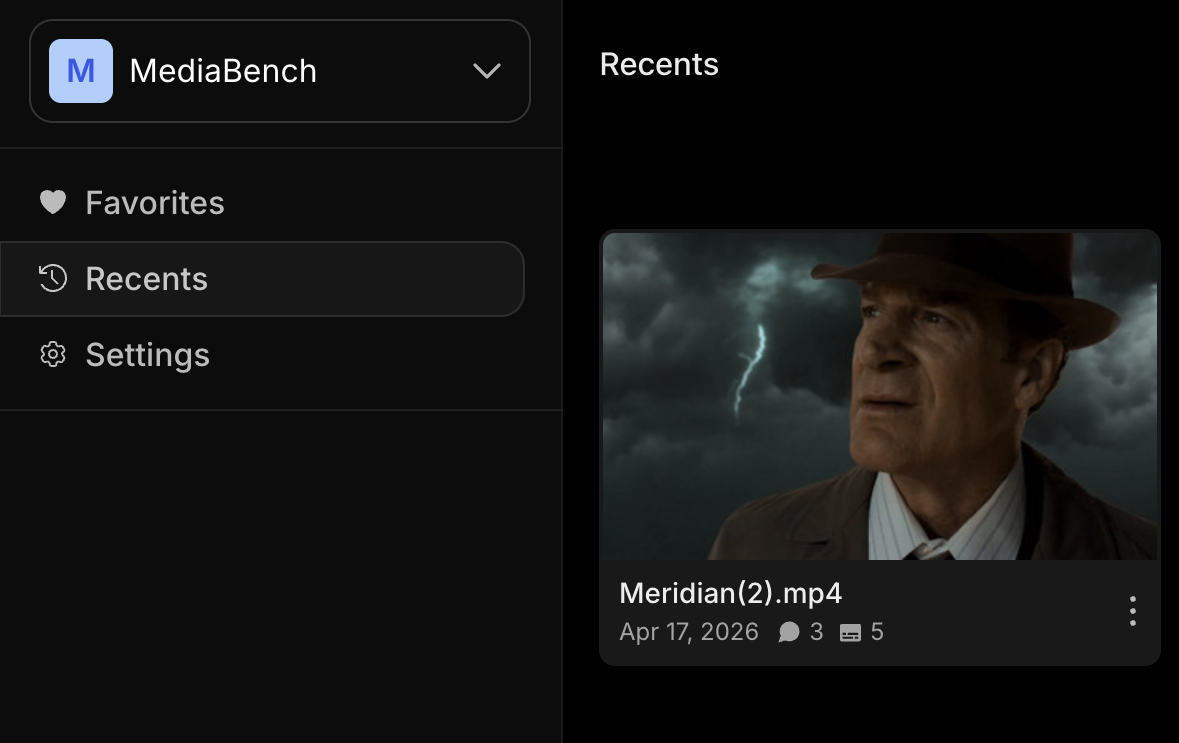
- Click Recents in the navigation sidebar
- Find the asset by its preview or name
- Click the asset to open it and continue reviewing
Find the containing folder
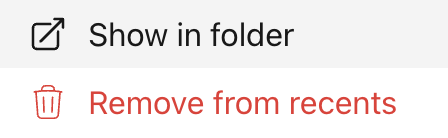
Open the asset's three-dot menu and select Show in folder to go to its current folder.
Remove an entry
Open the asset's three-dot menu and select Remove from recents to remove it from your history. The asset stays unchanged. Opening it again adds it back.
Good to know
- Recents keeps up to 100 assets opened in the last 14 days. If you open more, the oldest entries leave the collection.
- History is personal and saved in this browser, separately for each user and workspace. It survives closing the browser and signing out, but does not sync across browsers or devices. Clearing browser site data removes it.
- Archived assets leave Recents. Restoring an asset adds it back only when you open it again.
- Recents shows your viewing history. It does not notify you about new comments, replies, or mentions.
tip
Use Favorites for assets you want to keep close beyond the recent-history window.