Attach and Manage Audio Tracks
You can attach one or more audio tracks to a video, for example alternate-language dubs or different mixes, so reviewers can switch between them and generate subtitles from any of them. Audio tracks live on video assets, so the Audio tab appears only on videos.
Attach an audio track to a video
You can attach audio by dragging or from the menu.
Drag and drop
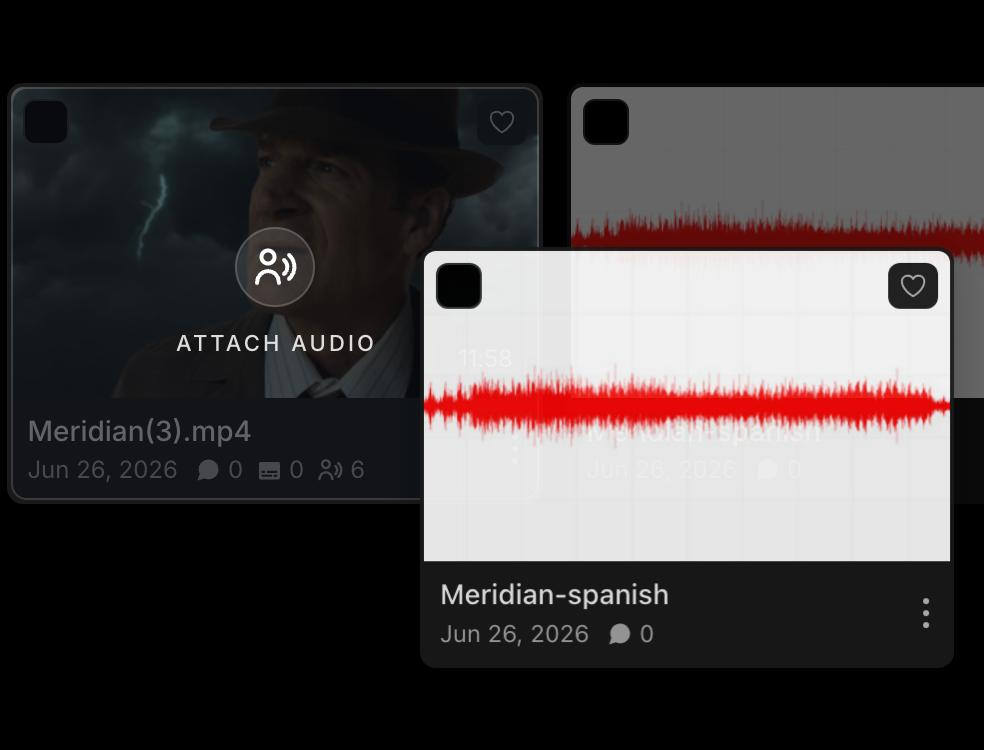
Drag an audio asset onto a video tile. A drop zone labelled Attach audio appears on the video; release to start attaching.
From the menu
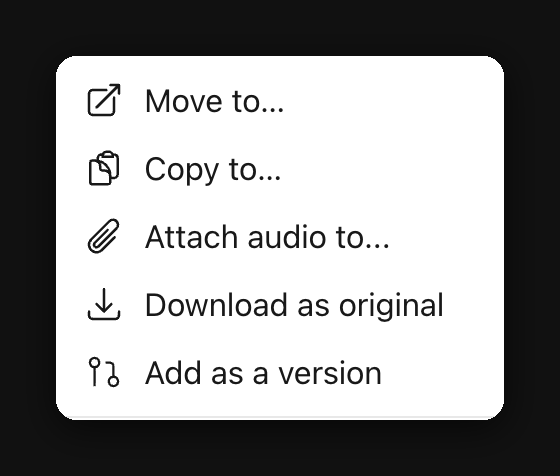
- Open the three-dot menu on the audio asset and select Attach audio to…
- In the Attach audio dialog, the audio appears under Audio track. Set its Language (required)
- Optionally set a Player label — the text shown for the track in the video player's audio menu
- Under Attach to, use the Search videos field to find the target video (search is scoped to the current folder)
- Leave Remove from folder when attaching off to keep a copy in the folder, or turn it on to move the audio onto the video
- Select Attach. The dialog closes and the audio is attached — you'll see it on the video's Audio tab.
Who can attach audio depends on their role. See Access roles.
Review attached tracks
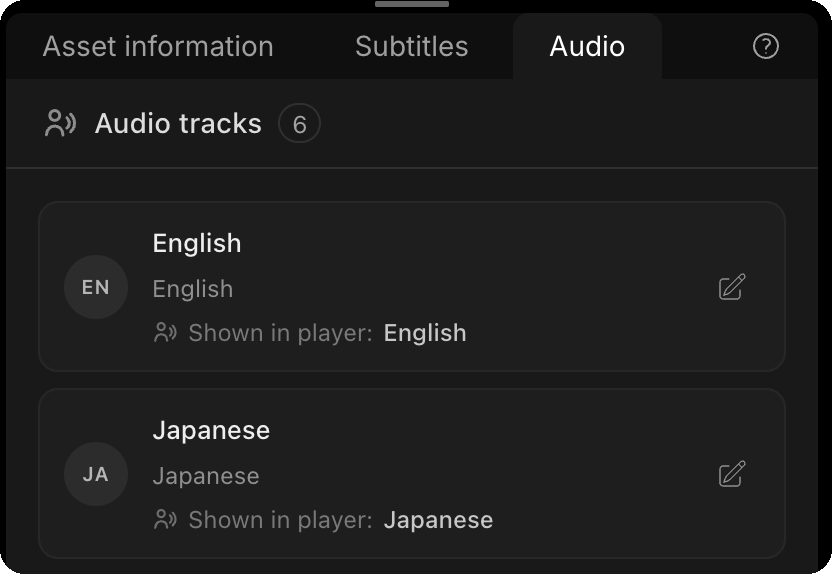
- Open the video and select the Audio tab
- Each track shows its name and language, and a count badge shows how many tracks are attached
- The asset thumbnail in the gallery shows an audio icon with the track count
Edit a track
Select the pencil icon on a track to open its edit form. You can change:
- Name - the track's display name in the list (required)
- Player label - the text shown after Shown in player on the card and in the video player's audio menu
- Language - the track's spoken language, which also sets its language badge (required)
- Show in player - toggle whether the track is available in the player's audio menu
Select Save to apply your changes.
Switch audio tracks during playback
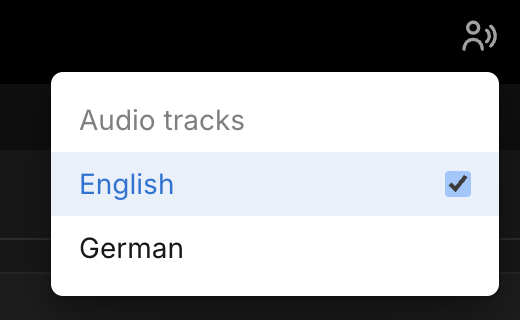
When a video has more than one audio track, open the Audio tracks menu in the player control bar and pick a track.
Transcribe from a specific track
When a video has multiple audio tracks, subtitle generation asks which track to transcribe. See Add subtitles.