Bulk Operations
When you need to act on several assets or folders at once, select them and use the bulk action bar instead of repeating the same action one item at a time. Bulk operations are available in Tiles and List views.
Select items
Use the checkboxes on the tiles or rows to select the items you want. A bar appears showing how many are selected (for example 3 items selected). Click Cancel to clear your selection.
Apply a bulk action
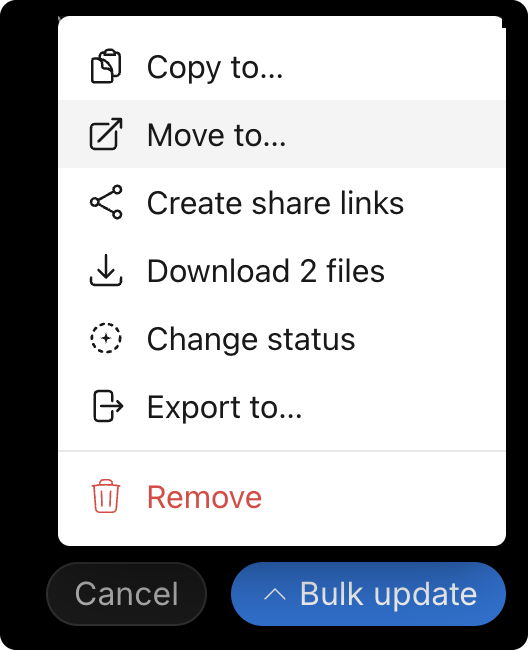
Open the Bulk update menu in the bar and choose an action:
- Copy to… - copy the selected items into another folder
- Move to… - move them into another folder
- Create share links - generate a separate share link for each selected item
- Download N files - download the current selection (the label shows how many files are selected)
- Change status - set the same status on all selected assets
- Export to… - export the selection to an external connection such as Box
- Remove - remove the selected items (use Restore to bring removed items back)
note
Which actions you can use depends on your role. See Access management settings for who can do what across the workspace.