Attach Subtitles to a Video
When you already have a subtitle file, for example a vendor's final .vtt or .srt delivery, you can attach it straight from your project onto a video instead of generating subtitles in MediaBench. The subtitle plays in the video's player alongside any AI-generated sets, so you can line it up against the picture and sound and QC it before you approve.
To have MediaBench transcribe the audio for you instead, see Add subtitles.
Attach a subtitle to a video
You can attach a subtitle by dragging or from the menu.
Drag and drop
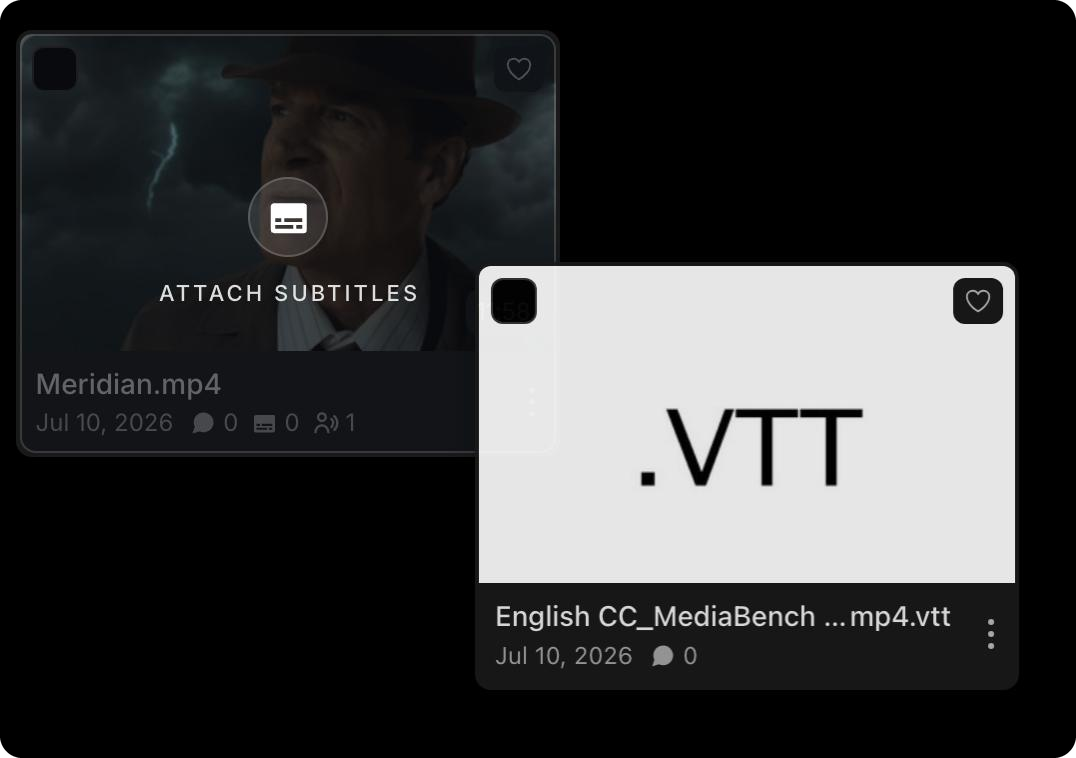
Drag a subtitle asset onto a video tile. A drop zone labelled Attach subtitles appears on the video; release to start attaching.
From the menu
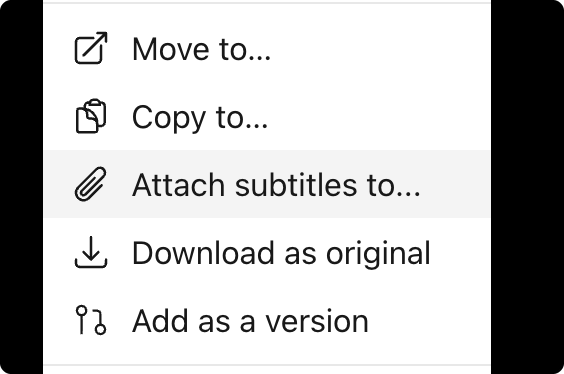
- Open the three-dot menu on the subtitle asset and select Attach subtitles to...
- In the Attach subtitles dialog, the subtitle appears under Subtitles. Select its name to rename it if you want.
- Choose the subtitle's Language (required)
- If the target video has more than one audio track, optionally pick the Audio track the subtitles were timed against. This is a cross-reference for reviewers and does not change playback
- Optionally set a Player label, the name shown for this track in the player's subtitle menu
- Under Attach to, use the Search videos field to find the target video (search is scoped to the current folder)
- By default, Remove from folder when attaching is on, which moves the subtitle onto the video. Turn it off to keep a copy in the folder so you can attach it to other videos
- Select Attach
Managers and contributors can attach subtitles. Viewers cannot.
Watch attached subtitles
Once attached, the subtitle is delivered into the video's stream and appears in the player's subtitles menu. Open the subtitles button in the player and pick the language to turn it on. See Turn on subtitles in the player.