Upload a Folder
When your media is already organized into folders on your computer, you can bring the whole thing into MediaBench in one step. Uploading a folder recreates its structure inside your workspace, so nested sub-folders and their files land in the same shape you started with. It's the fastest way to move an existing project in without rebuilding it by hand.
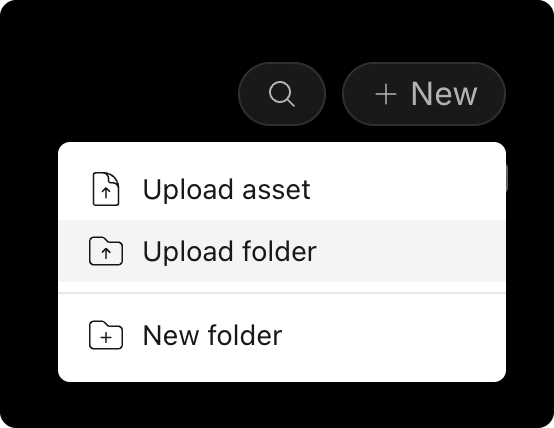
Upload a folder
- Select the folder you want to upload into
- In the menu bar, click + New and select Upload folder
- Choose the folder on your computer and confirm
MediaBench recreates the folder you chose, rebuilds any sub-folders inside it, and uploads every file to the right place. Each asset is processed for streaming and review once it lands.
note
Empty folders aren't created. If a folder contains no assets, MediaBench skips it, so only folders with files land in your workspace.
Good to know
- Folder structure is preserved, so you don't have to rebuild it after uploading.
- The same upload options for audio tracks and protections apply to everything in the folder.
- To reorganize afterwards, move or copy folders and assets, or use bulk operations.